How Browser Games Work: Loading, Saving Progress, Sound and Full Screen
A browser game looks like magic from the outside: you click, a bar fills, and a world appears. Underneath it is four plain mechanisms, and once you know them the small annoyances stop being mysterious. Here is what each one does and what you can do about it.
Loading: why the bar takes as long as it takes
Before a game can start, your browser has to fetch everything it needs in one go: the code, the pictures, the sounds, and for 3D games the shapes of every car, wall and tree. Nothing can be shown until enough of that has arrived.
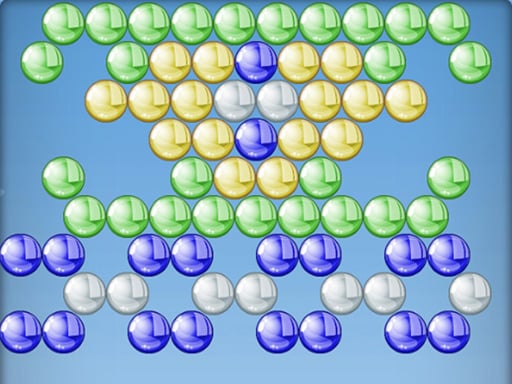
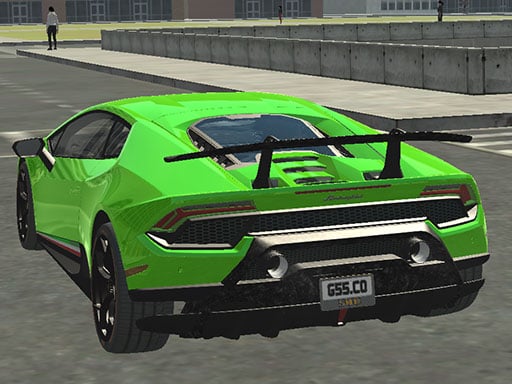
This is why loading times differ so much between two games on the same site. Bubble Shooter is a handful of coloured circles and is playable almost at once. Real City Driving 2 has to build a whole city first, so a longer wait on the first visit is normal, not a fault.
The second visit is usually much faster. Your browser keeps a copy of what it already downloaded, so only the parts that changed come down again. That is also why clearing your browsing data makes every game slow once more.
- If a bar stops and stays stopped for more than a minute, reload the page rather than waiting.
- On a weak connection, start the game and leave the tab alone. Switching tabs while it loads can slow it further on some phones.
Saving: your progress lives on your own device
There is no account, so a game cannot keep your progress on a server under your name. Instead it writes a small note into your browser's own storage, on the device you played on. Levels finished, coins earned, best score, chosen settings: that is what goes in.
Three consequences follow, and they explain almost every lost-progress question:
- Progress belongs to one browser on one device. Finishing thirty levels of Blocky Adventures on a laptop does not carry over to your phone, or from Chrome to Safari on the same machine.
- Clearing cookies and site data deletes it. So does a browser cleaning tool set to wipe everything.
- Private or incognito windows throw the storage away when you close them. Play in a normal window if you want to come back to a run in progress.
Sound: why it starts silent
Every modern browser blocks a page from making noise on its own. This is deliberate, and it is the reason a game can look like it has no music at first. A single click or tap inside the game usually unlocks the audio, after which it behaves normally.
If a game stays silent after that, work down this short list before blaming the game: the volume control inside the game itself, the tab's own mute setting, your system volume, and on a phone the physical silent switch. On an iPhone the side switch mutes browser audio in some situations, which catches people out regularly.
Rhythm and music games are worth checking before you start, since Bloom is difficult to time without hearing the track.
Full screen: more than a bigger picture
Most games have a full screen button in a corner of the frame, and your browser has its own: F11 on Windows, or Control plus Command plus F on a Mac.
It is worth using for two reasons beyond size. First, your clicks stay inside the game, and a stray click outside the frame is a common reason keyboard controls suddenly stop responding in the middle of a race. Second, the page stops scrolling under you when you press the space bar or an arrow key, which matters enormously in jumping games such as Circle Jump.
Press Escape to come back out. Nothing is lost by doing so, and the game keeps running.
A short routine that avoids most problems
- Open the game in a normal window, not a private one, if you want the save to keep.
- Click once inside the frame before you judge the sound.
- Go full screen before a run that needs the keyboard.
- Close heavy tabs behind you when a 3D game feels sluggish.
If something still misbehaves, the fixes are collected in the troubleshooting guide, and the Racing and Skill sections are good places to test that everything is working.